When spreadsheets start looking like a chaotic art project, it’s time to hit the reset button. Excel can turn even the simplest data into a rainbow of colors and fonts, but sometimes, less really is more. If your cells are dressed to the nines but your data is still in its pajamas, knowing how to remove formatting can save the day.
Overview of Excel Formatting
Excel formatting enhances the appearance of data but can also create clutter. Understanding the types of formatting available and knowing when to remove it improves clarity.
Types of Formatting in Excel
Excel offers several formatting types including number, cell, and conditional formats. Number formats adjust how values display, like currency or percentages. Cell formats change background colors and borders to distinguish data visually. Conditional formatting highlights cells that meet specific criteria, making it easy to identify trends. Each format serves a purpose, yet excessive use can overwhelm users.
Importance of Removing Formatting
Removing unnecessary formatting significantly improves data readability. Cluttered spreadsheets distract users from key information. Streamlined formatting allows for quicker analysis and decision-making. Simplifying presentation can prevent misinterpretation of data. It can also enhance compatibility when sharing files with others. Users gain clarity and efficiency, making data management more effective.
Methods to Remove Formatting in Excel
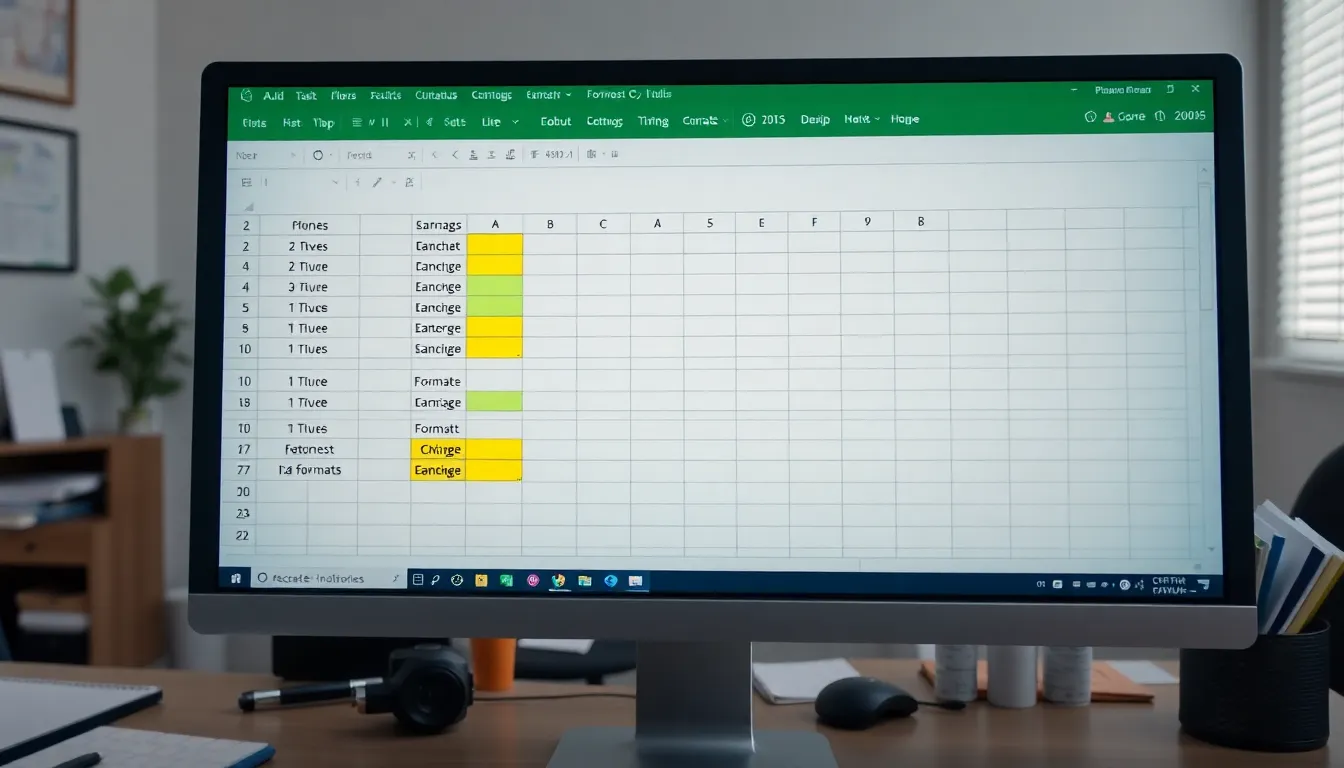
Removing unnecessary formatting in Excel is essential for maintaining a clear and organized spreadsheet. Several methods exist for achieving this, making it easier to enhance data readability.
Using the Clear Formats Feature
The Clear Formats feature provides a straightforward way to eliminate formatting. Users can select the cells that require formatting removal, navigate to the Home tab, and click on Clear, then select Clear Formats. This action resets the selected cells to their default formatting, retaining the data without any specified styles. Applying this method simplifies the overall appearance of the spreadsheet while ensuring essential data remains intact.
Keyboard Shortcuts for Quick Removal
Keyboard shortcuts speed up the formatting removal process. Pressing Ctrl + Space selects the entire column, while pressing Shift + Space selects the entire row. Following this, pressing Alt + H, E, and F clears formatting from the selected cells rapidly. Utilizing keyboard shortcuts not only saves time but also enhances workflow efficiency in Excel, allowing users to focus on data rather than overwhelming formats.
Common Scenarios for Removing Formatting
Removing formatting enhances data clarity in various situations. Understanding these scenarios is vital for effective spreadsheet management.
Cleaning Up Data Import
Data imports often bring in unwanted formatting, making sheets cluttered. Users can easily encounter issues with inconsistent fonts and colors when transferring data from other sources. To resolve this, applying the Clear Formats feature on imported cells helps restore default formatting. Simplifying the formatting allows for better analysis and avoids confusion during data interpretation. Moreover, quick keyboard shortcuts expedite this process, ensuring a more streamlined workflow.
Preparing for Printing
Preparing spreadsheets for printing often involves clearing distracting formats. Excessive colors and fonts can detract from the main content, rendering printed sheets less effective. Users should prioritize a clear layout by removing unnecessary formatting before printing. This practice not only improves readability but also emphasizes critical data points. Additionally, ensuring a uniform appearance through formatting removal creates a professional presentation essential for stakeholder reviews.
Tips for Effective Formatting Management
Effective formatting management enhances spreadsheet clarity and usability. Implementing the right strategies ensures data stays organized without overwhelming users.
Using Styles and Templates
Styles and templates streamline formatting tasks in Excel. Utilizing built-in styles helps maintain consistency across spreadsheets. Templates save time by providing a pre-defined layout that meets specific needs. Users can create custom styles for recurring tasks to ensure uniformity. Applying styles and templates simplifies adjustments, enabling users to focus on their data rather than formatting.
Avoiding Common Formatting Pitfalls
Avoiding common formatting pitfalls can prevent clutter and confusion in spreadsheets. One frequent error involves applying too many font styles or colors, which can distract from the data. Users often overlook the importance of removing unnecessary formatting in imported data, leading to inconsistencies. Keeping formatting uniform across similar data sets enhances readability. Simplifying through clear, concise formats prevents misinterpretation and promotes effective analysis.
Removing unnecessary formatting in Excel is crucial for maintaining clarity and efficiency in spreadsheets. By simplifying the appearance of data users can enhance readability and streamline analysis. The Clear Formats feature and keyboard shortcuts are valuable tools that make this process quick and easy.
Implementing effective formatting strategies not only improves visual appeal but also ensures consistency across data sets. This approach minimizes distractions and promotes accurate interpretation of information. Ultimately a well-organized spreadsheet allows for better decision-making and effective communication of data insights. Embracing these practices leads to a more productive and professional experience in Excel.